Note
Need help? Please let us know in the UMEP Community.
3.10. Urban Energy Balance: SUEWS Database Manager
Note
NEW PLUGIN: This plugin is still experimental. Please report any issues to our code repository.
- Contributor:
Name
Institution
Oskar Bäcklin
Gothenburg
Ting Sun
London
Sue Grimmond
Reading
Fredrik Lindberg
Gothenburg
- Introduction:
The SUEWS Database Manager is a tool that can be used to add new input parameters used for the SUEWS model, which is one of the main models incorporated in UMEP. The purpose of creating this new generation of database connected to SUEWS is to reduce redundancies present in the old input text-files and to make easier for users to investigate and change input information to the model. Furthermore, the ambition of this open database is to improve general input information for all SUEWS-users. Apart for facilitating specific input variables, users can also use this plugin to create so-called urban typologies which represents certain properties for specific urban neighbourhoods. These typologies can in turn be used to produce input data for SUEWS using the SUEWS Database Prepare plugin.
The plugin consists of 11 different tabs used to access and add info to the database. Most tabs has two purposes. First, you can use it to create new entries in the database and second, you can use it to examine already existing data stored in the database.
If you have made any changes, please save the database and consider to submit this back to the developers so that the database can be updated and redistributed to other users. Currently we have no automatic system for this so save the excel file and send to fredrikl[at]gvc.gu.se.
Tab name
Description
Main tab - Reclassifier
Used for classification of typology vector data from any urban classes to SUEWS defined urban typologies.
Typologies
Here, new urban typologies can be created. Currently, description of buildings and paved land cover classes are included in a typology.
Land Cover
Here, new land cover classes is created. Each land cover type have different input parameters that should be specified. Here, you can also get info on the different parameter settings availalbe for each parameter type.
Parameters
All environmental parameters is gathered in this tab. Here new values can be added for each specific parameter
Emissions
Anthropogenic emission parameters can be added here. See help section in the SUEWS model on how to set these.
Profiles
There are different types of activity profiles used in SUEWS. They are all gathered in this tab. This plugin has imported country-specific profile from the LUCY-model (Allen et al. 2010) that can be used. You can also create your own profiles.
Irrigation
Hydrology is one main feature in SUEWS. In this tab one can set specific parameters related to irrigation
Snow
A specific module within SUEWS can also model the effect of snow on water and energy balance. This tab sets various parameters related to this module.
Building facets
SUEWS have capabilities to estimate radiation and storage fluxes via the SPARTACUS-model (still experimental) and the ESTM-scheme. Properties of building facts are added in this tab.
Building Materials
Here building materials is added to the database.
References
It is essential to be able to know the source of information for each parameter added. This tab is used to add new references into the database.
- Main Tab - Reclassifier
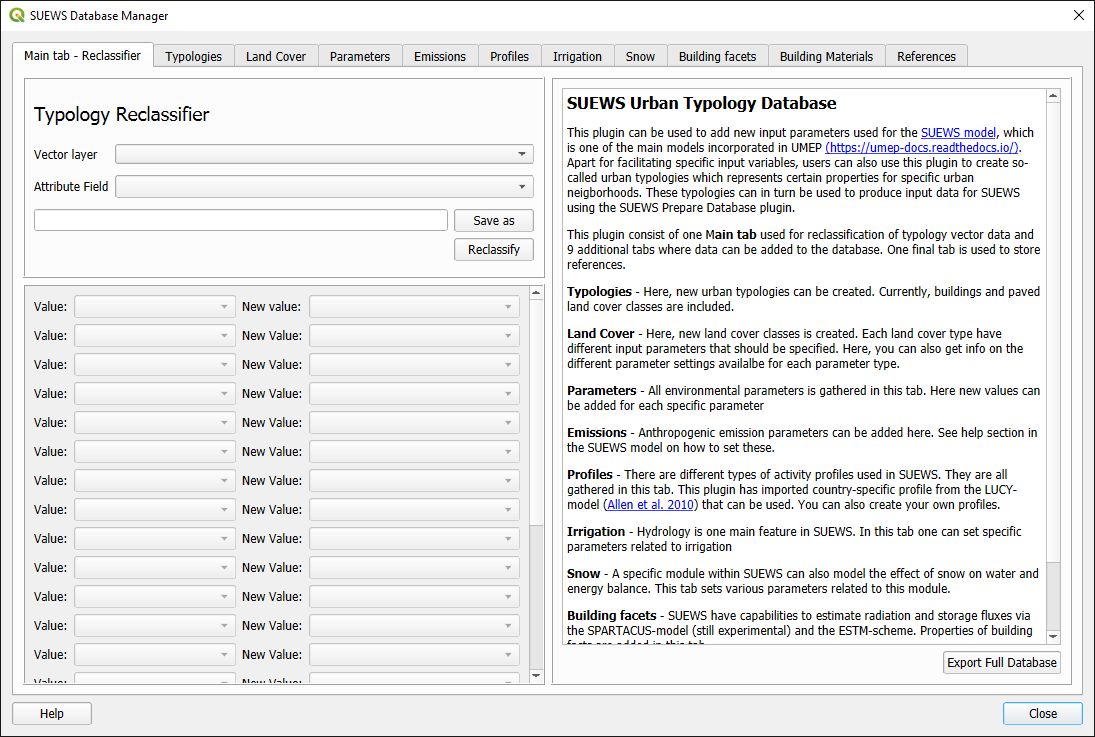
Fig. 3.14 Dialog for the SUEWS Database Manager main-tab. Click on image for enlargement.
- Vector layer:
A vector polygon layer with areas representing urban areas of common typology e.g. sub-urban brick houses.
- Attribute Field:
An attribute field with urban typology names.
- Combo boxes of old and new values:
These comboboxes is used to reclassify user named typologies into tyolpogies found and described in the current database. If your typology is missing, proceed to the Typology-tab to create a new urban typology.
- Save as:
Location where the plugin will save your new, updated shape file.
- Reclassify:
Starts the reclassification based on the comboboxes above. A new attribute will be created.
- Typologies Tab
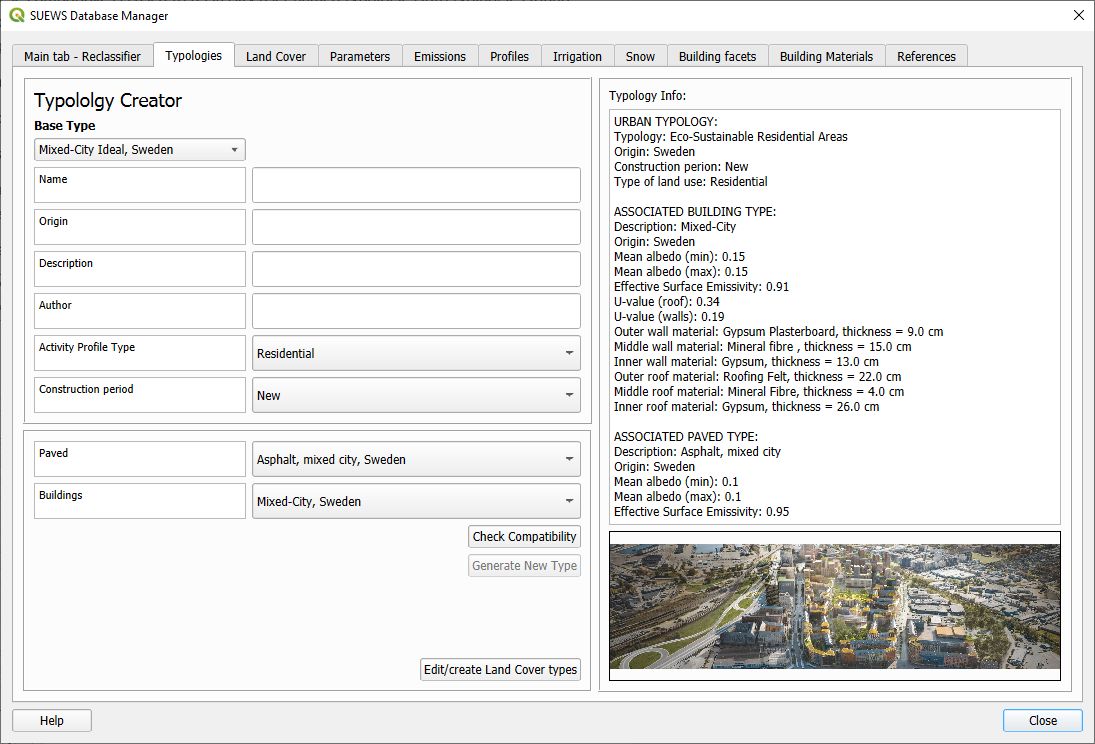
Fig. 3.15 Dialog for the SUEWS Database Manager Typologies-tab. Click on image for enlargement.
- Base Type:
This combobox can be used for two purposes: 1. To retrive infomation regarding an urban typology and 2. To use a typology as base when creating a new typology.
- Name:
Name of new typology to be added into the database.
- Geographic Origin (if applicable):
Location where this typology exist. Specify by country first, then more details if needed
- Description:
If needed, more details on typology is given here.
- Author:
Name of user (you) that adds items into the database.
- Activity Pofile Type:
Land use of the typology. Residential, Commercial or Industrial. Currently not used.
- Construction period:
Time of construction. Pre80, Pst80 or New. Currently not used.
- Paved:
Paved type (found in Land Cover-tab) connected to the urban typology.
- Buildings:
Building type (found in Land Cover-tab) connected to the urban typology.
- Check compability:
Click this to see if name allready exist in the database.
- Generate New Type:
If you pass the compability test, click this button to add your new typology to the database.
- Edit/Create Land Cover Type:
Click this to move to the Land Cover-tab.
- Land Cover Tab
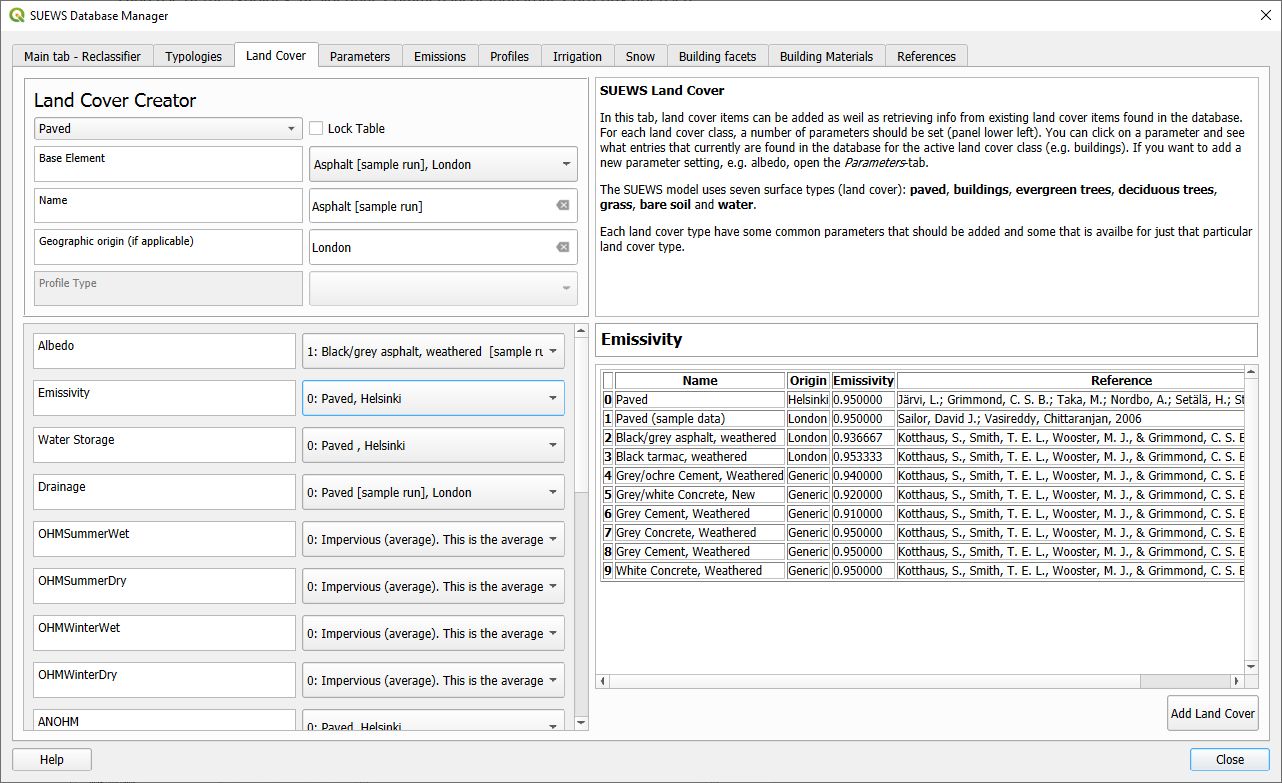
Fig. 3.16 Dialog for the SUEWS Database Manager Land Cover-tab. Click on image for enlargement.
- Top left combobox:
This combobox selects one of the seven land cover types. Changing land cover type here, affects this whole tab based on existing land cover types found in the database for a particular land cover (e.g. Paved).
- Base Element:
This combobox can be used for two purposes: 1. To retrive infomation regarding a specific land cover and 2. To use a land cover type as base when creating a new database entry.
- Name:
If needed, more details on land cover is given here.
- Geographic Origin (if applicable):
Location where this specific land cover exist. Specify by country first, then more details if needed
- Lower left panel:
For each land cover class, a number of parameters should be set. You can click on a parameter and see what entries that currently are found in the database for the active land cover class (e.g. paved). If you want to add a new parameter setting, e.g. albedo, open the Parameters-tab.
- Parameters Tab
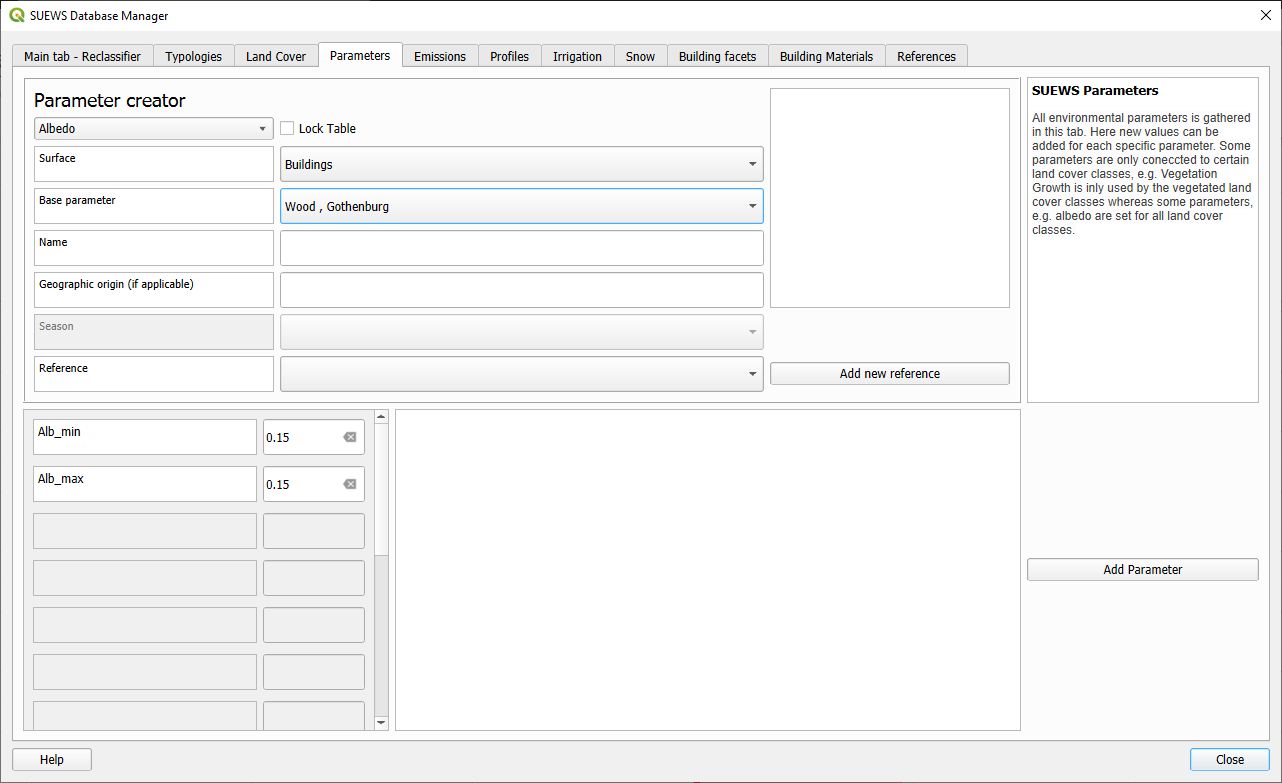
Fig. 3.17 Dialog for the SUEWS Database Manager Parameters-tab. Click on image for enlargement.
- Top left combobox:
This combobox selects a parameter that a new entry should be added. Changing parameter type here, display what values that should be set in the lower left panel.
- Base Parameter:
This combobox can be used for two purposes: 1. To retrive infomation regarding a specific parameter setting and 2. To use a parameter setting as base when creating a new database entry.
- Name:
Name to identify entry.
- Geographic Origin (if applicable):
Location where this specific land cover exist. Specify by country first, then more details if needed
- Reference:
If possible, point to a reference where your entry is specified/derived.
- Lower left panel:
For each parameter, one or many entries should be set. In this panel you see all entries that should be considered for the specific parameter choosen. Hover over the parameters for explaination of specific parameter.
- Emissions Tab
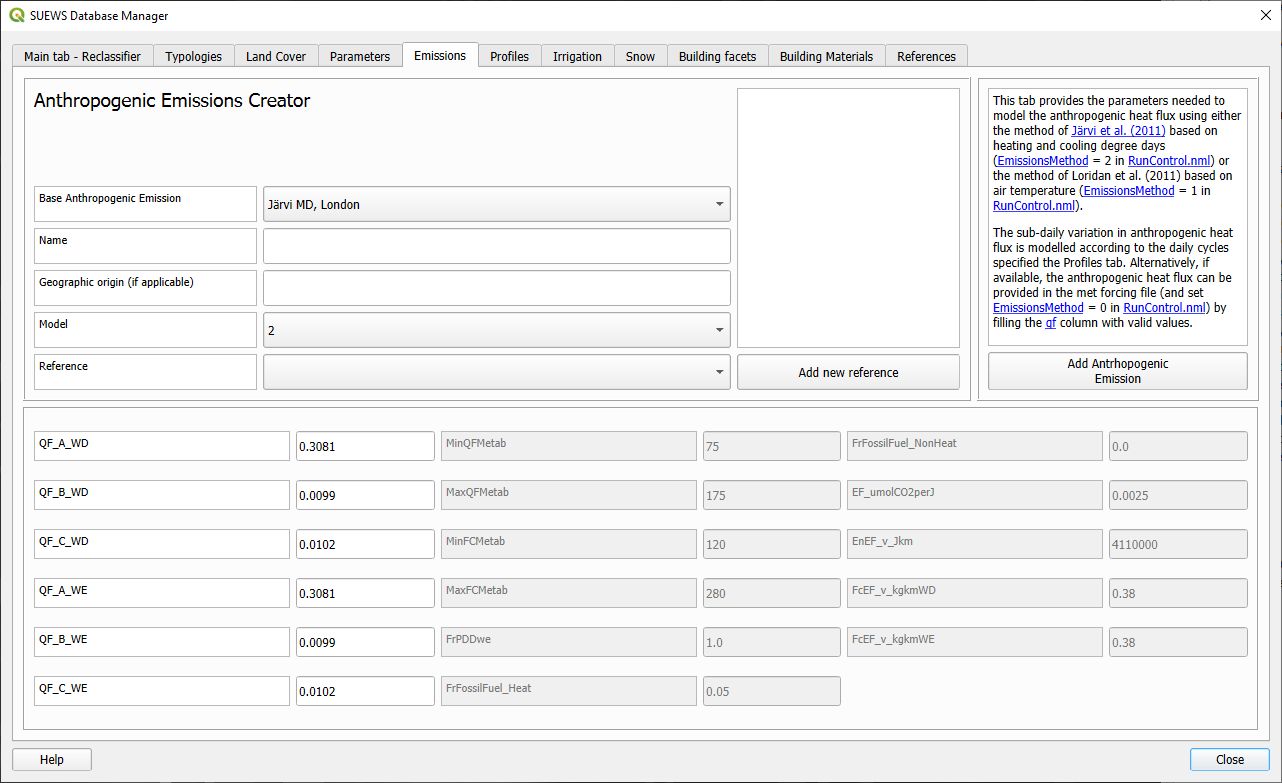
Fig. 3.18 Dialog for the SUEWS Database Manager Emissions-tab. Click on image for enlargement.
- Base Anthropogenic Emission:
This combobox can be used for two purposes: 1. To retrive infomation regarding a specific emission setting and 2. To use an exisiting setting as base when creating a new database entry.
- Name:
Name to identify entry.
- Geographic Origin (if applicable):
Location where this specific land cover exist. Specify by country first, then more details if needed
- Model:
Based on model selected in RunControl.nml in SUEWS, different entries are required. Change method and you see below which entries that are needed. For more info, visit the SUEWS manual.
- Reference:
If possible, point to a reference where your entry is specified/derived.
- Lower panel:
Here, values are shown and can be changed/added when new emission factor is added into the database.
- Profiles Tab
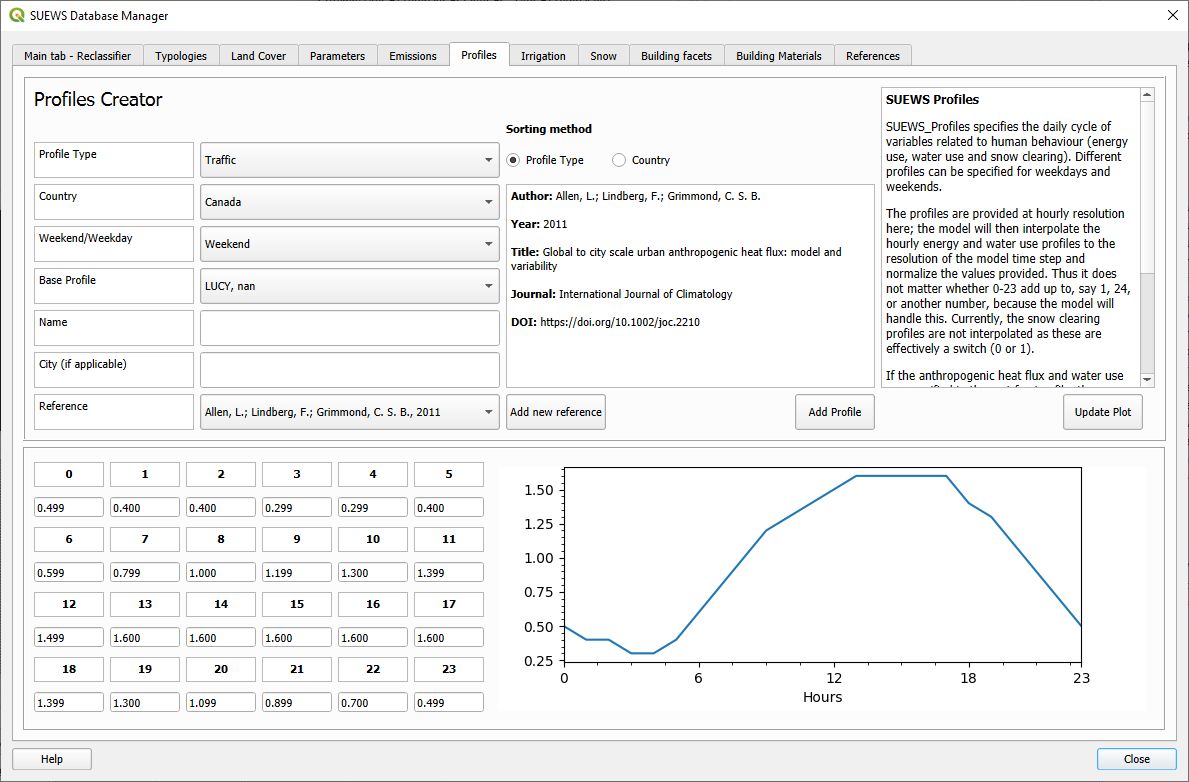
Fig. 3.19 Dialog for the SUEWS Database Manager Profiles-tab. Click on image for enlargement.
- Profile Type:
Here i list of all different profiles used in SUEWS are listed.
- Weekend/Weekday:
Profiles of behavioral patterns usually differ between weekdays and weekends. Here .
- BaseProfile:
This combobox can be used for two purposes: 1. To retrive infomation regarding a specific profile setting and 2. To use an exisiting setting as base when creating a new database entry.
- Name:
Name to identify entry.
- Geographic Origin (if applicable):
Location where this specific land cover exist. Specify by country first, then more details if needed
- Reference:
If possible, point to a reference where your entry is specified/derived.
- Lower panel:
Here, values are shown and can be changed/added when new profiles is added into the database. A plot is also shown. You can update the plot by clicking Update Plot above the panel.
- Irrigation Tab
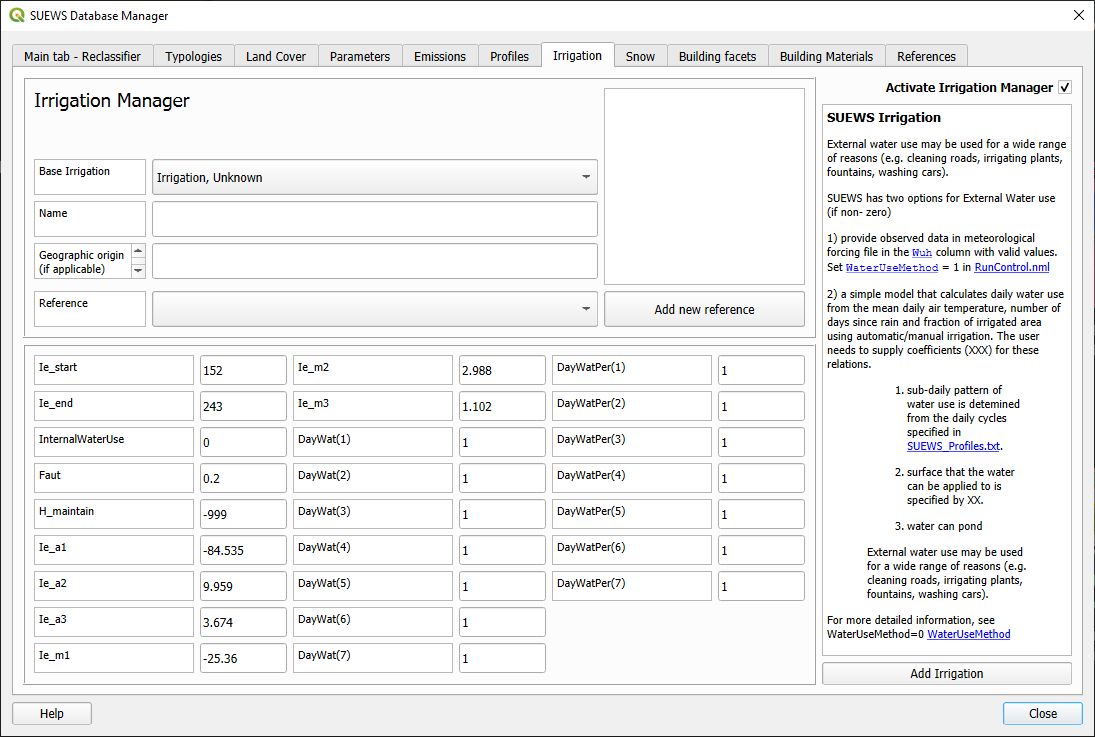
Fig. 3.20 Dialog for the SUEWS Database Manager Irrigation-tab. Click on image for enlargement.
- Base Irrigation:
This combobox can be used for two purposes: 1. To retrive infomation regarding a specific irrigation setting and 2. To use an exisiting setting as base when creating a new database entry.
- Name:
Name to identify entry.
- Geographic Origin (if applicable):
Location where this specific is derived from. Specify by country first, then more details if needed
- Reference:
If possible, point to a reference where your entry is specified/derived.
- Lower panel:
Here, values are shown and can be changed/added when new irrigation data is added into the database. Hover over an entry with mouse pointer to get more detailed info.
- Snow Tab
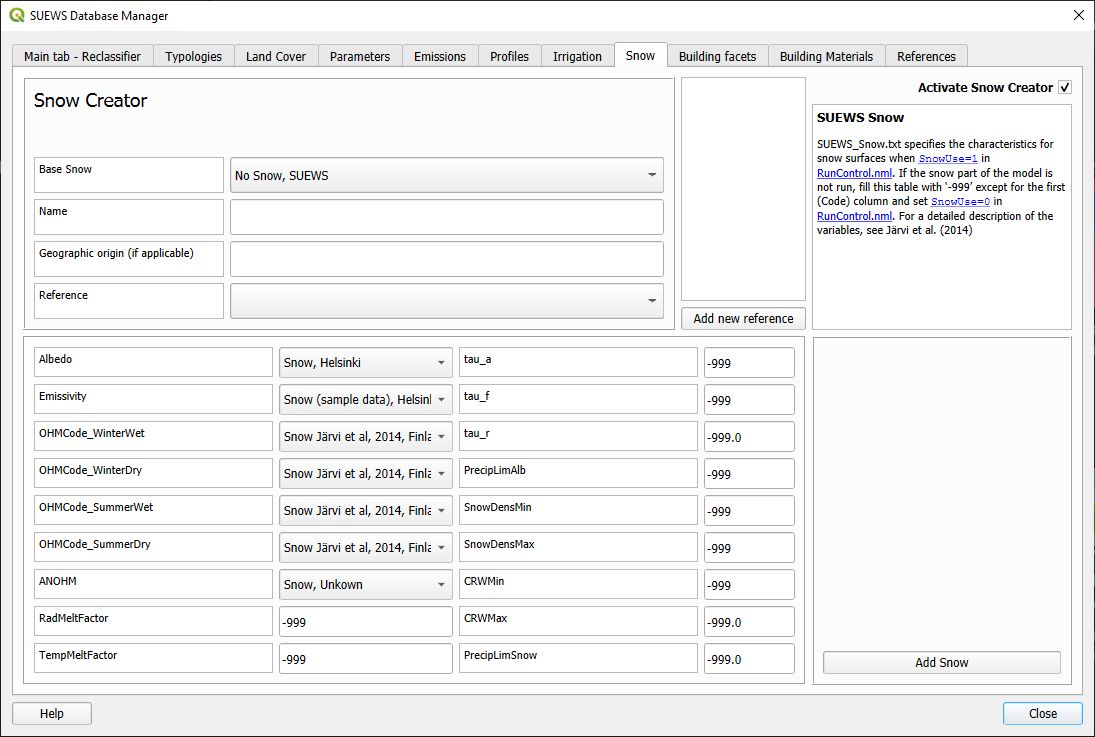
Fig. 3.21 Dialog for the SUEWS Database Manager Snow-tab. Click on image for enlargement.
- Base Snow:
This combobox can be used for two purposes: 1. To retrive infomation regarding a specific snow clearing setting and 2. To use an exisiting setting as base when creating a new database entry.
- Name:
Name to identify entry.
- Geographic Origin (if applicable):
Location where this specific is derived from. Specify by country first, then more details if needed
- Reference:
If possible, point to a reference where your entry is specified/derived.
- Lower panel:
Here, values are shown and can be changed/added when new snow data is added into the database. Hower over an entry with mouse pointer to get more detailed info.
- Building facets Tab
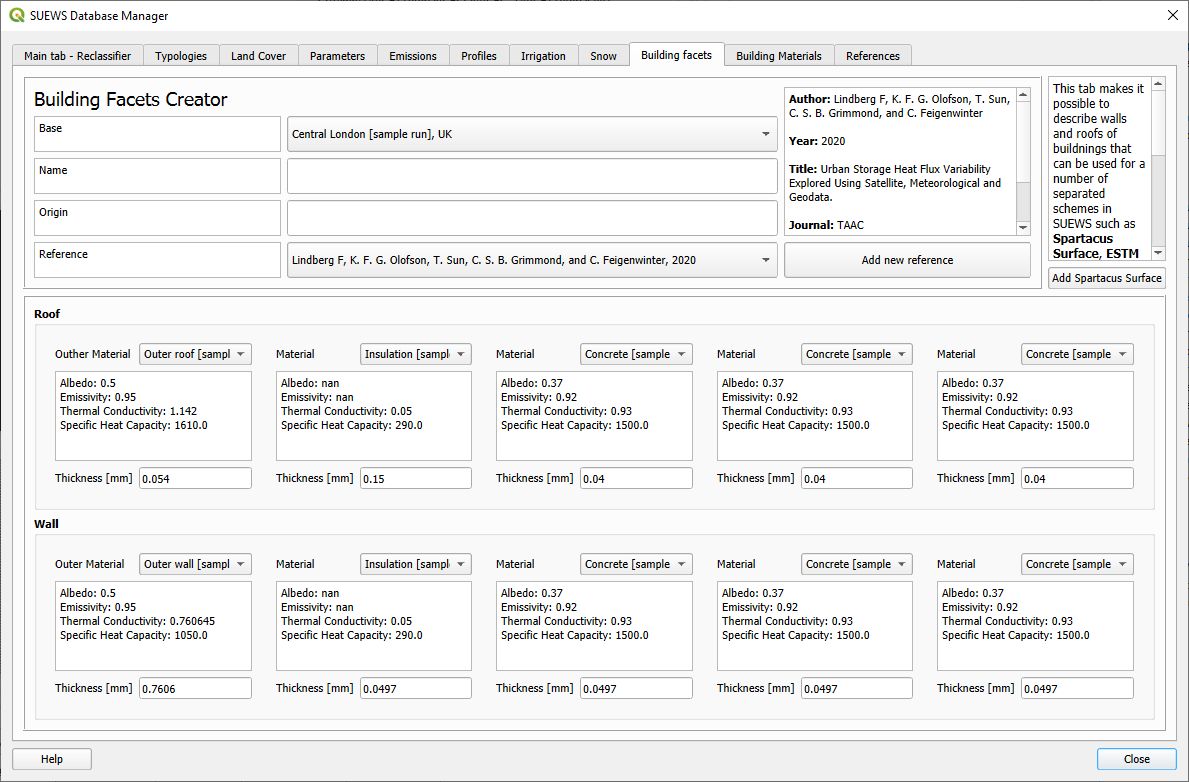
Fig. 3.22 Dialog for the SUEWS Database Manager Building Facets-tab. Click on image for enlargement.
- Base:
List of all different building factes found in the database. This combobox can be used for two purposes: 1. To retrive infomation regarding a specific profile setting and 2. To use an exisiting setting as base when creating a new database entry.
- Name:
Name to identify entry.
- Geographic Origin (if applicable):
Location where this specific land cover exist. Specify by country first, then more details if needed
- Lower panel:
Here, material layers and thier thickness in a wall or roof is specified. A wall can consist of up to 5 layers. A building material can be set in the Building Materials-tab.
- Building Materials Tab
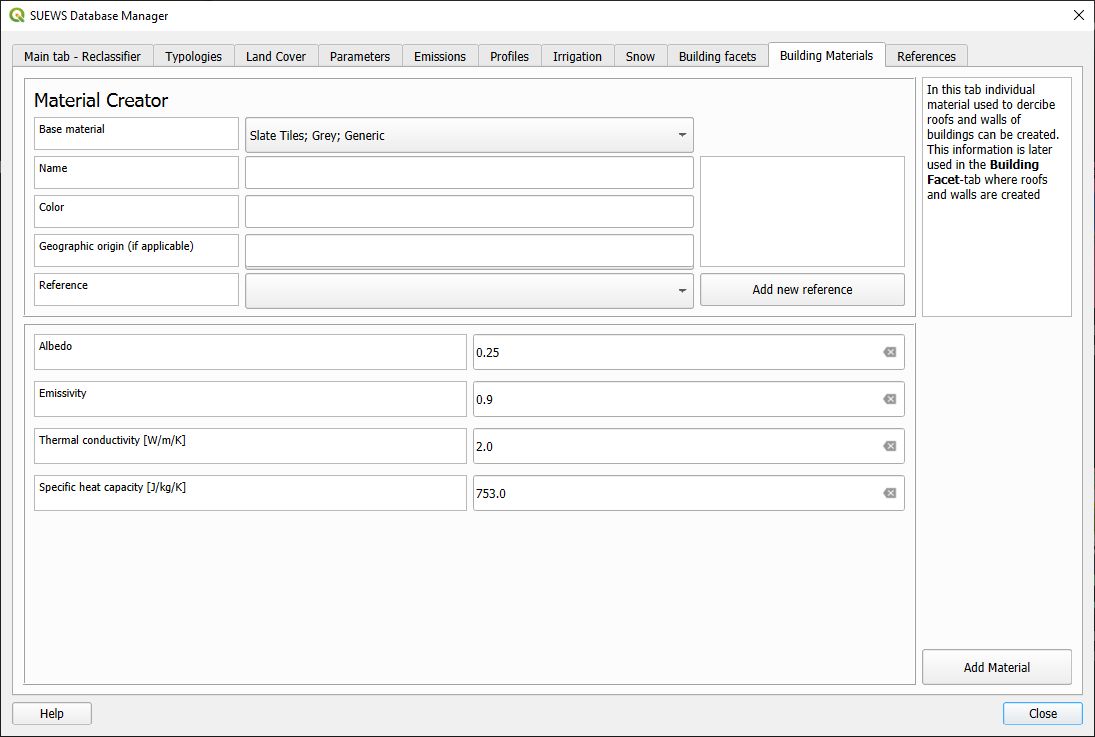
Fig. 3.23 Dialog for the SUEWS Database Manager Building Facets-tab. Click on image for enlargement.
- Base Material:
List of all different building factes found in the database. This combobox can be used for two purposes: 1. To retrive infomation regarding a specific profile setting and 2. To use an exisiting setting as base when creating a new database entry.
- Name:
Name to identify entry.
- Color:
Color of material.
- Geographic Origin (if applicable):
Location where this specific land cover exist. Specify by country first, then more details if needed
- Lower panel:
Here, material properties are shown and can be set. Values can usually be found in textbooks, look-up tables or research papers.
- Closing the plugin
When clicking on the Close button, the window below apperas. If you have made any changes, please save the database and consider to submit this back to the developers so that the database can be updated and redistributed to other users. Currently we have no automatic system for this so save the excel file and send to fredrikl[at]gvc.gu.se.
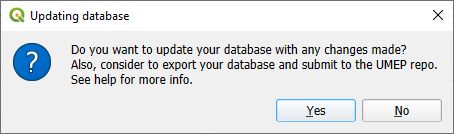
Fig. 3.24 Dialog shown when closing the SUEWS Database Manager. Click on image for enlargement.
To make use of the database to create actual input data for the SUEWS-model. please move on to the SUEWS Database Prepare plugin.